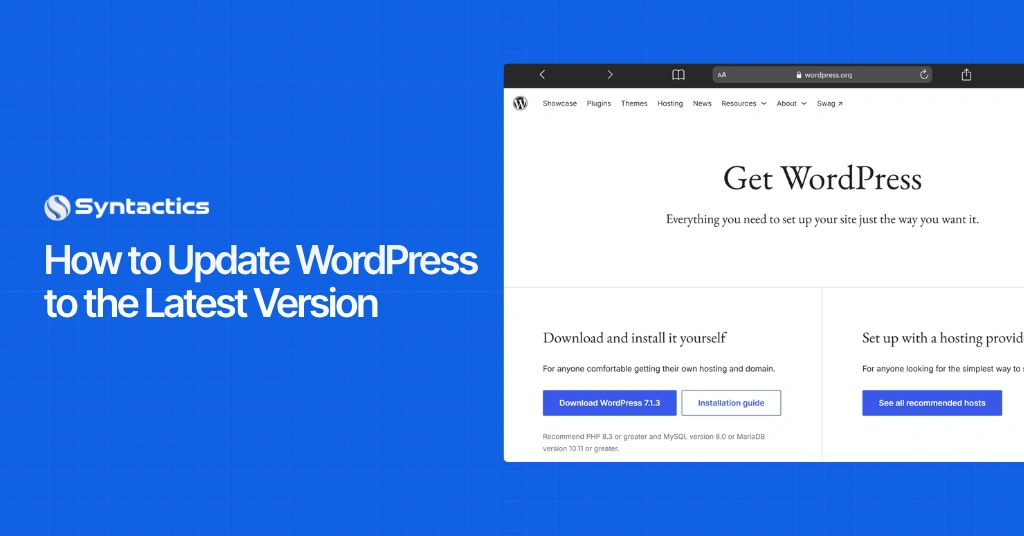
Keeping WordPress updated is vital to keeping your website running properly. Each new version comes with security patches and performance fixes that protect your site and keep it running smoothly. In short: check your current WordPress version, then update it to the latest release as needed.
WordPress is a free, open-source CMS that a community of developers continuously improves. The software improves with every maintenance release, with added features, bug fixes, and performance enhancements. It also strengthens security and closes off known vulnerabilities, which helps WordPress websites stay aligned with current industry standards, including website SEO best practices.
That popularity cuts both ways, though. The same openness that makes WordPress easy to build on also makes it a well-studied target for hackers who know exactly which vulnerabilities to look for in outdated installs. Site owners need to stay conscious of their site’s current WordPress version and get into the habit of installing updates regularly.
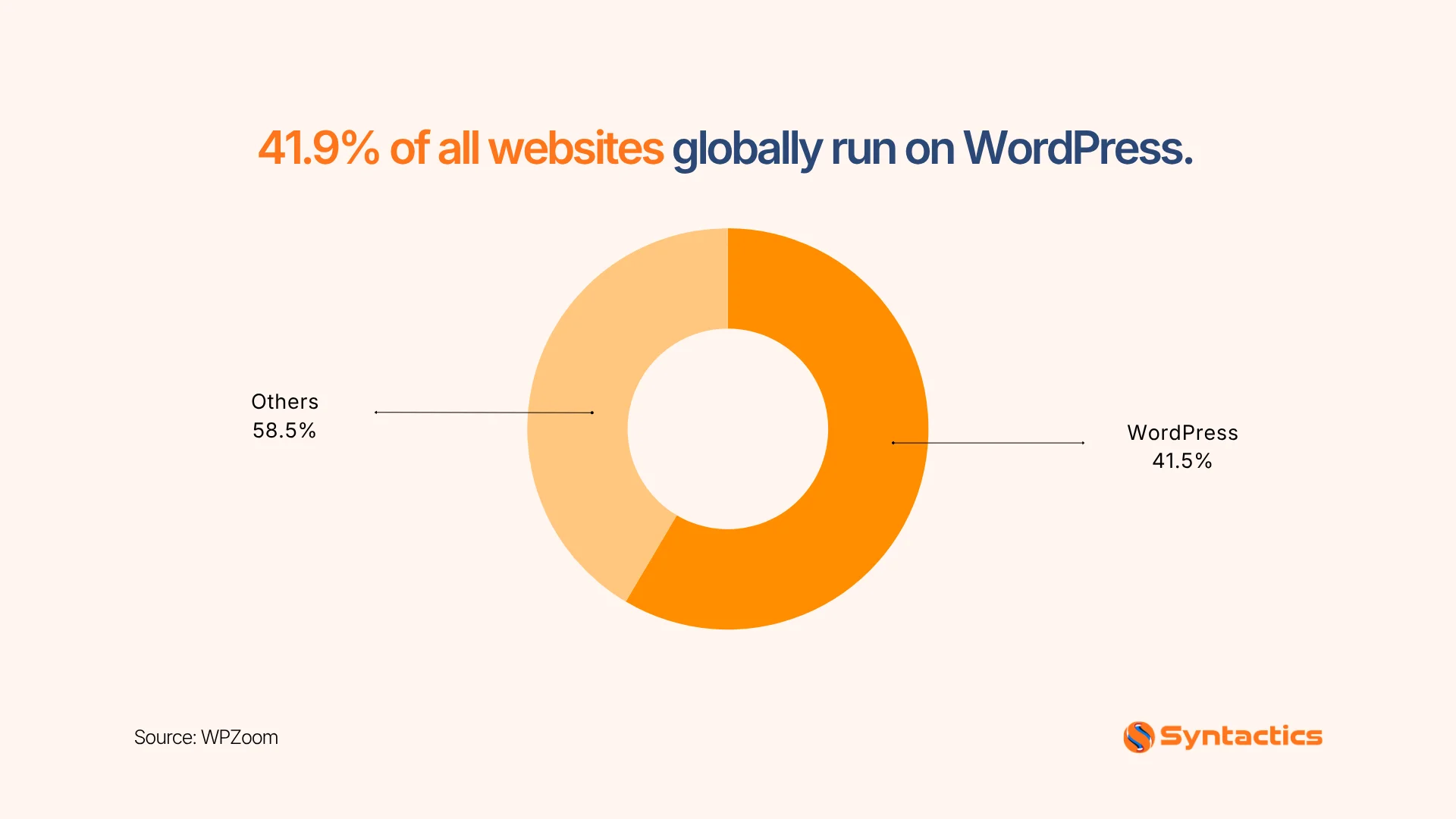
Source: WPZoom
Why You Should Update WordPress to Its Latest Version
1. Security
Security is the main reason to update WordPress. Because the CMS is open-source and popular for building websites, it’s also an attractive target for hackers looking to cause data breaches.
According to research from 20i, 87.62% of WordPress sites worldwide, over 38.99 million sites, are running versions below the platform’s current release.
Outdated WordPress installs carry known security vulnerabilities that hackers actively scan for and exploit, and attackers are moving faster than ever: the median time from a vulnerability’s disclosure to mass exploitation is now just five hours. Website owners should install recent versions of core files, themes, and plugins to reduce that exposure.
2. New and Improved Features
Beyond the security risk, an outdated WordPress version won’t include new improvements or functionality. Each release builds on the last; recent examples include a better user interface, improved accessibility, and the block editor.
Using an older version also changes your day-to-day experience with the CMS. Self-help guides and tutorials are usually written for the current version, so it gets harder to follow the further behind you fall. WordPress support forums often assume you’re on the latest version too, which can make troubleshooting more frustrating than it needs to be.
3. Better Site Speed
An upgraded WordPress version fixes security flaws and adds features, but it can also improve page speed. Speed matters for both user experience and SEO, and WordPress core continues to ship performance fixes with each release; one recent example is improved navigation menu performance.
If you want to push site speed further, converting your site images to WebP format is another effective way to speed up WordPress websites alongside staying current on core updates.
4. Fixes for Past Version Bugs
New WordPress releases don’t just patch security holes; they also smooth over bugs left over from the previous version. WordPress goes through extensive testing before a major release, but some bugs still slip through and get caught in later minor updates.
That’s why support forums usually ask whether you’re running the latest WordPress version before offering troubleshooting advice. It’s often the first thing to rule out.
5. Plugin Compatibility
Plugins handle most of a website’s extended functionality, and a WordPress update can occasionally disrupt plugins that aren’t built to current coding standards. If your WordPress themes and plugins follow WordPress best practices and stay updated, this usually isn’t a problem; most theme and plugin developers time their own updates to match WordPress core releases.
Even so, back up your site regularly in case a plugin developer misses that memo.
How to Check Your WordPress Version
Via the Admin Dashboard
This is the most common method for checking your WordPress version, and it requires no coding experience, just admin access to the website backend. Your version number typically appears somewhere on backend pages, such as the bottom-right corner.
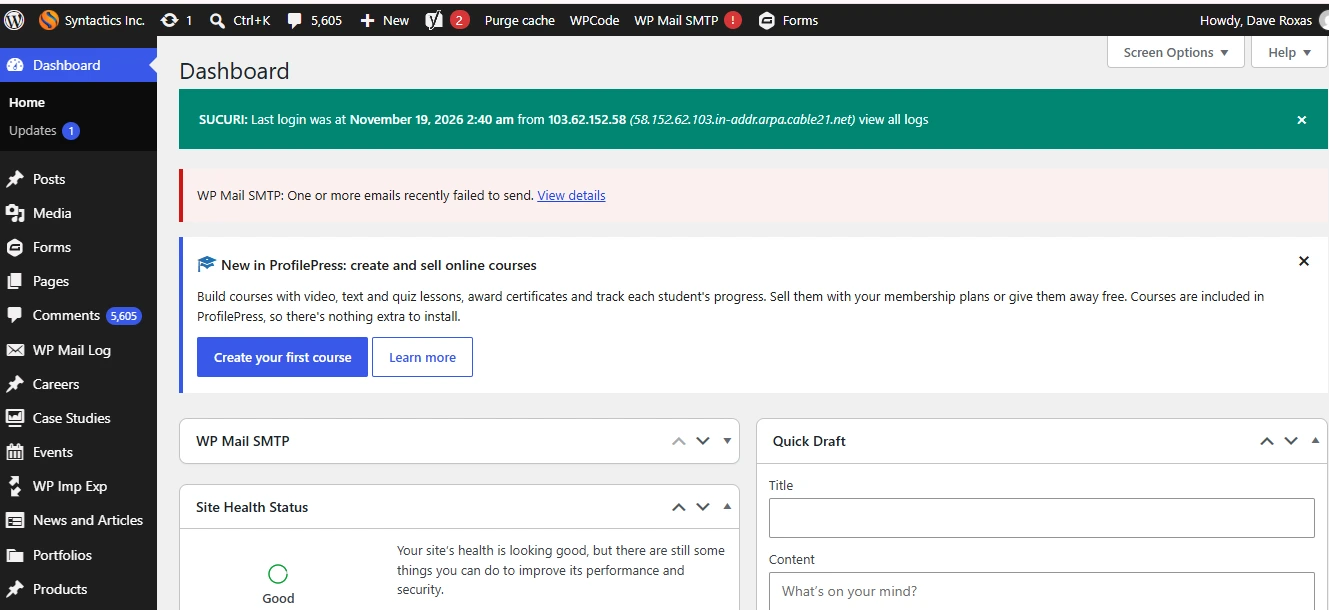
Method 1: Check the Updates Section
From the admin dashboard, go to the Updates section to see the version you’re running. If your WordPress version is outdated, the page will prompt you to install the latest release and show you an indicator message confirming whether you’re current.
Note: If your version is outdated, back up your website before installing the update.
Method 2: Look at the About WordPress Screen
Hover over the WordPress logo in the admin bar to open a dropdown menu, then click the first option. This opens the About WordPress screen, which shows your version number along with related release information.
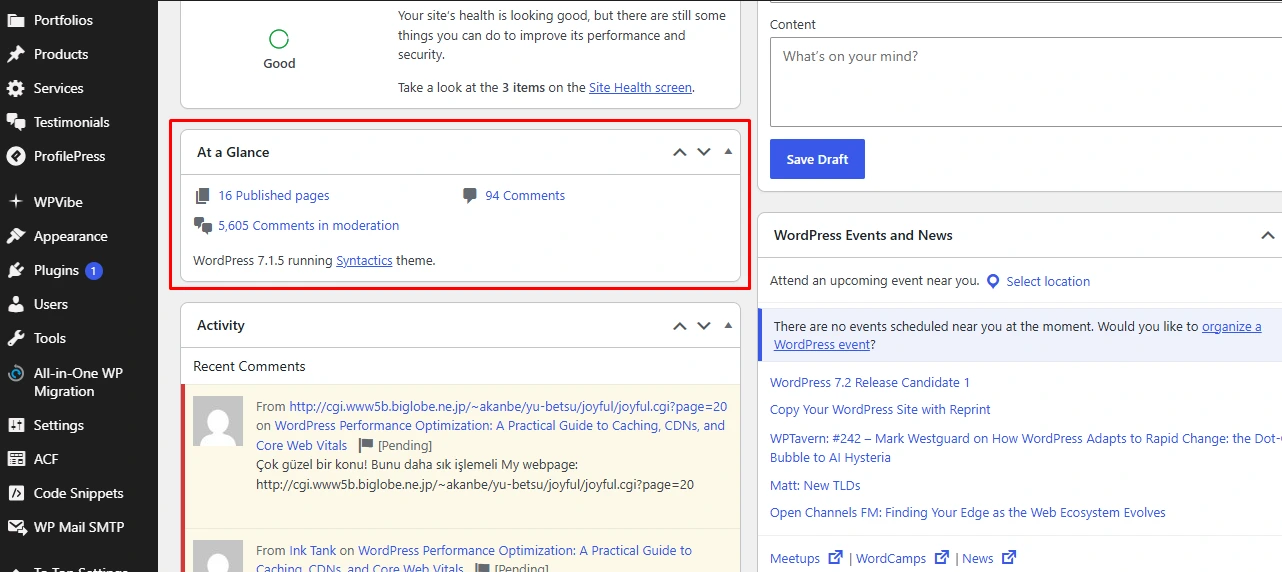
Method 3: Examine the “At a Glance” Box
The At a Glance box on the admin dashboard shows info on your posts, pages, and current theme, along with your WordPress version at the bottom. If it’s missing, a custom theme or plugin may have removed it, or you may be running an older version that doesn’t include it.
Via the Page Source Code
This approach doesn’t require backend access, which makes it useful if you don’t have admin credentials.
Method 1: Look at the Page’s CSS and HTML Code
Go to your website’s homepage, right-click anywhere on the page, and select “View Page Source” (or “View Source”). In the tab that opens, use Ctrl+F to search for the word “generator.” Since the generator tag is enabled by default, you’ll see a line containing your version number.
One downside: if you can see this number, anyone else can too, including hackers. You can hide it by modifying your theme’s functions file.
Method 2: Readme File
Older WordPress versions let you view the current version number by adding /readme.html to the end of your website’s address. This only works on sites still running outdated versions.
Method 3: RSS Feed
Similar to the readme method, add /feed to the end of your website URL to access the RSS feed. This method is used less often these days but still works on many sites.
Via the version.php File
Checking version.php directly is the most reliable way to confirm your WordPress version, since this file lives inside your website’s core files. Your site needs to be live and hosted, and you’ll need FTP login credentials from your host, specifically your username, password, and port.
Start by downloading and installing an FTP client. This guide uses FileZilla, a free and widely used option.
Using FileZilla
- Launch FileZilla and enter your host, username, password, and port in the Quickconnect bar.
- In the Host field, enter your domain preceded by sftp:// instead of https://. If you get a connection error, try ftps:// or just the domain name on its own.
- Click Quickconnect. Your website’s files and directories will appear on the right-hand panel.
- Navigate to the wp-includes folder and open it.
- Find the version.php file and double-click to open it, but don’t modify anything inside.
- Use Ctrl+F to search for the $wp_version variable. The number right after it is your WordPress version.
Alternatively, you can access these same internal files through cPanel’s File Manager if your host provides it.
Via WP-CLI
WP-CLI (WordPress Command Line Interface) is the preferred method for developers checking versions, since it lets you execute commands even without browser access.
That said, this option isn’t for everyone. If you’re not comfortable working from the command line, it’s best to have an experienced user check your version this way instead, since mistakes here can affect the live site.
To use WP-CLI:
- Connect to your host via SSH.
- Type cd html to navigate to the correct directory.
- Run wp core version to display your current WordPress version.
How to Update Your WordPress Version
Once you’ve confirmed your current version and know it’s out of date, you’re ready to update. Before doing anything else, make a complete backup of your WordPress site; a WordPress development company can handle backup practices for you if you’d rather not manage it in-house.
Even if you already have automated backups running through a plugin, create a fresh backup and store it somewhere safe and remote before updating. Make sure the backup covers:
- Your database
- Images and other media files
- Plugins
- Themes
- Core files
With backups secured, you can proceed with whichever update method you’re most comfortable with.
Method 1: Updating via the Built-In Admin Dashboard
This is the quickest way to update WordPress, and the process itself takes only a few minutes. On your admin dashboard, check the top of the page for a new release notice. If your version is outdated, click “Please update now,” which opens the Updates page. From there, select “Update Now” to begin.
Method 2: Using the At a Glance Widget
The At a Glance widget offers another route to the same update process. If your version is outdated, you’ll see an upgrade prompt button here as well. Confirm your database and file backups are in place, then click “Update Now” to proceed.
Method 3: Using FTP to Update WordPress Manually
If the first two methods aren’t available to you, updating manually via FTP is the fallback. You’ll need an FTP client such as FileZilla, WinSCP, or Cyberduck, or you can use your hosting control panel’s File Manager instead. Either way, you’ll need access to your site’s root directory, since this method involves overwriting old core files like wp-includes and wp-admin with new ones.
Updating Your WordPress Version with FileZilla
- Download the latest WordPress package and unzip the folder.
- Inside the unzipped files, locate and delete wp-config-sample.php and the wp-content folder to avoid overwriting or losing existing data.
- Log in to your site with FileZilla. The right-hand panel shows your remote site (the live server).
- Locate the existing wp-admin and wp-includes directories on the server and delete them.
- On the left-hand panel, locate the new wp-admin and wp-includes folders from the unzipped files and upload them to the server.
- Upload the remaining unzipped files to the web host directory, overwriting the old files.
- If prompted with “Target file already exists,” select “Always use this action” and “Apply to current queue only” to move through the process without repeated prompts.
- Once uploading finishes, add /wp-admin/upgrade.php to your domain name in a browser to confirm the update completed successfully.
This manual method takes longer and demands more attention to detail than the dashboard options. Follow each step carefully; a mistake here can break your site.
Final Thoughts
WordPress is a popular, well-documented CMS for building websites, but that same visibility means people with malicious intent know exactly where to look for weaknesses. Keeping your WordPress site current is one of the simplest, most effective ways to protect it.
Updated versions bring better security, improved features, faster page speed, and stronger plugin compatibility. You’ve got several ways to check your current version, from a quick glance at your dashboard to a deeper look at your site’s code, and just as many ways to update, whether automatically or manually.
Manual updates, in particular, suit more experienced users, such as WordPress web developers, who can navigate the process without risking your site’s stability.

This article was updated on September 23, 2026.
Frequently Asked Questions
How do I know if my WordPress site needs an update?
Check the Updates section or the At a Glance box on your admin dashboard. Both show your current version and let you know whether a newer release is available.
Is it safe to update WordPress without a backup?
No. Always back up your database, files, themes, and plugins before updating; even a minor update carries some risk if something conflicts with an existing plugin or theme.
Will updating WordPress break my plugins?
It can, if a plugin hasn’t been updated to match current WordPress standards. Most actively maintained plugins release compatibility updates alongside WordPress core releases, so keeping plugins current significantly reduces this risk.
Should I update WordPress manually or automatically?
The built-in dashboard update is easier and sufficient for most site owners. Manual FTP updates are typically reserved for situations where the dashboard update fails or isn’t accessible.