

WordPress Performance Optimization: A Practical Guide to Caching, CDNs, and Core Web Vitals
A slow WordPress website can turn a simple visit into a frustrating experience, especially when users need to complete a form, browse products, or finish a checkout. The 2026 SRE Report from Catchpoint found that 67% of respondents consider performance degradation as serious as downtime. This shows how strongly speed now connects with digital reliability.
As such, good WordPress performance optimization starts with measurement, not a random checklist of plugins. You need to identify where your site loses time, understand which issues affect real users, and prioritize changes by impact.
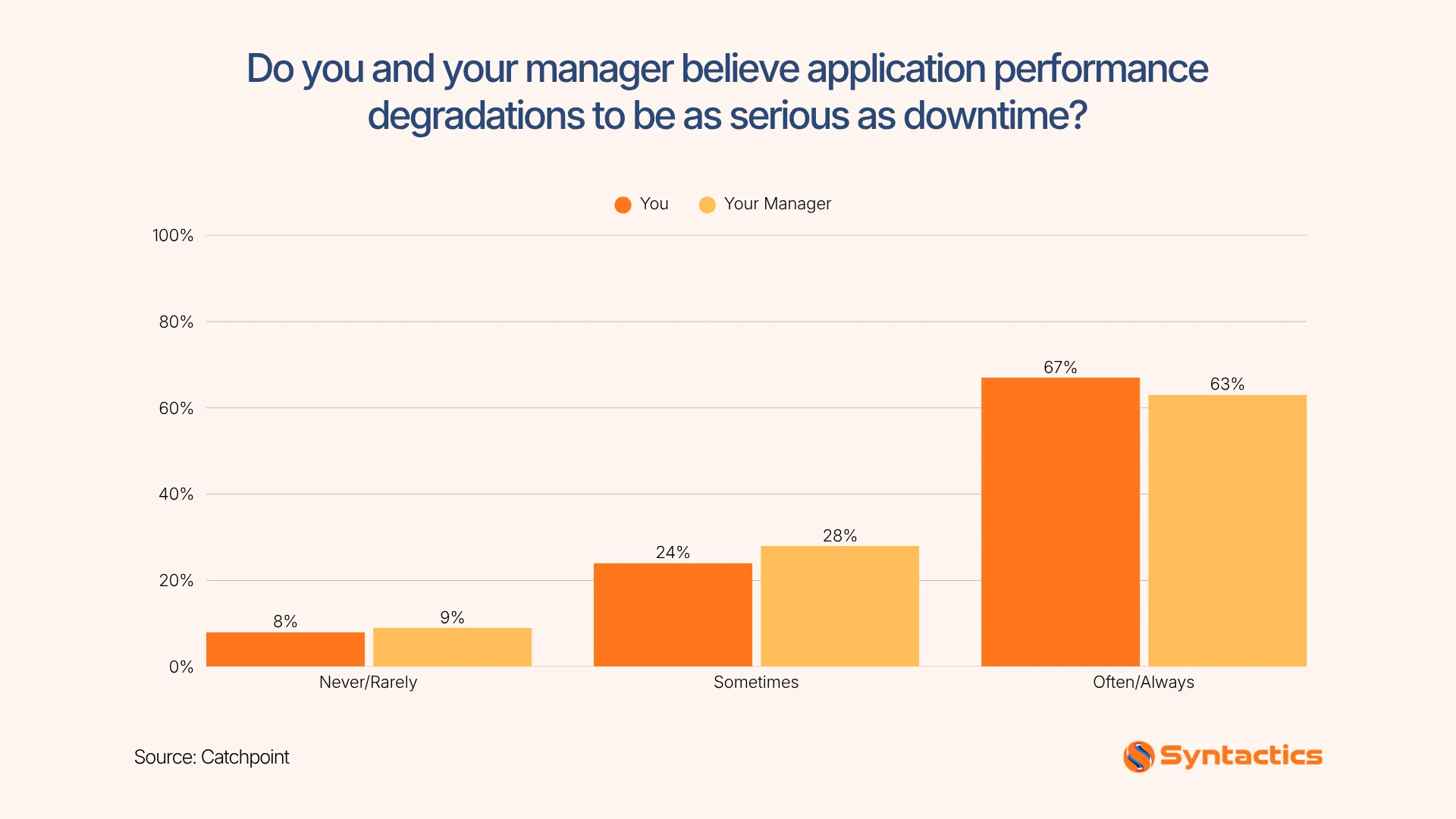
Source: Catchpoint
Key Takeaways
- Websites served over HTTPS were 1-5 seconds faster in Largest Contentful Paint (LCP) than sites using older protocols (WP Engine).
- Core Web Vitals measure loading speed, interaction responsiveness, and visual stability.
- Caching and CDNs improve content delivery when configured for your site’s needs.
- Performance testing helps you prioritize hosting, images, JavaScript, plugins, and code issues.
- Rebuilding may make sense when outdated architecture or infrastructure limits your site’s performance.
What Core Web Vitals Measure
Core Web Vitals focus on three aspects of page experience:
- Largest Contentful Paint (LCP): Measures how quickly the largest visible content element loads, with a Good score at 2.5 seconds or less.
- Interaction to Next Paint (INP): Measures how quickly a page responds to user interactions, with a Good score at 200 milliseconds or less.
- Cumulative Layout Shift (CLS): Measures unexpected movement of page elements during loading, with a Good score at 0.1 or less.
- SEO impact: Core Web Vitals are ranking signals, but they work alongside content relevance, quality, search intent, and other ranking factors.
Measure Before You Optimize
Measure your website before making performance changes. This gives you a baseline to compare against and helps you focus on issues with measurable impact.
- Establish a performance baseline: Use your current results as a reference point for measuring improvements after each change.
- Use reliable testing tools: PageSpeed Insights provides page-level diagnostics, while Google Search Console shows Core Web Vitals data across indexed pages. Real-user monitoring adds data from actual visitors when available.
- Test more than your homepage: Check different templates, including product pages, blog posts, service pages, landing pages, forms, and checkout pages.
- Test mobile and desktop: Performance can vary by device, so test both to identify issues affecting different visitors.
- Compare lab and real-user data: Lab tests provide controlled measurements, while real-user data shows how visitors experience your site in actual conditions.
- Pay attention to Interaction to Next Paint (INP): INP measures how quickly your site responds to user interactions, so real-user data can reveal interaction issues that some lab tools cannot measure directly.
- Track every change: Compare new results against your baseline to see which optimizations actually improve your site’s performance.
How Hosting Affects WordPress Performance
Your hosting environment affects more than uptime. It influences server response time, database processing, available resources, caching behavior, traffic handling, and the distance between your server and visitors.
A shared hosting plan may work well for a small site but struggle when traffic, database activity, or resource-heavy plugins increase. A higher-performance setup can provide more capacity, but you still need to configure WordPress efficiently.
For example, WP Engine’s 2025 Website Traffic Trends Report found that sites served exclusively over HTTPS were 1-5 seconds faster in Largest Contentful Paint (LCP) than sites using older protocols. This shows how infrastructure and server configuration can influence the speed visitors experience.
That said, avoid treating a specific server response time as a universal target. Results vary based on the hosting plan, site configuration, traffic levels, geographic location, database activity, and testing method.
When hosting issues require technical changes, consider working with a trusted WordPress developer in the Philippines. They can help you assess server configuration, resource allocation, and other infrastructure concerns alongside your WordPress setup.

Caching Explained
Caching stores frequently requested data, so your site doesn’t have to generate or download the same resources repeatedly. Different types of caching handle different parts of the WordPress performance process:
- Page caching: Saves a ready-to-serve version of a webpage, reducing the need for WordPress to generate the page for every visitor.
- Object caching: Stores frequently requested database queries and results in memory, reducing repeated database processing and helping dynamic pages respond faster.
- Browser caching: Stores files such as images, CSS, JavaScript, and fonts on a visitor’s device so they can reuse them instead of downloading them again on every visit.
- CDN caching: Stores eligible website files and cached pages on servers in different locations, allowing visitors to retrieve content from a server closer to them.
- Cache invalidation: Removes or refreshes outdated cached content when your site changes. This becomes especially important for shopping carts, account dashboards, dynamic pricing, and other personalized content where visitors need to see current information.
These caching layers can work together, but you need to configure them based on how your website delivers content.
What a CDN Does and When You Need One
A content delivery network (CDN) distributes eligible files and cached content across multiple geographic locations. When a visitor requests cached content, the CDN can serve it from a location closer to that visitor instead of sending every request to your origin server.
This can reduce geographic latency and improve delivery for images, stylesheets, scripts, fonts, and cached pages. However, a CDN cannot solve every performance problem.
If your uncached HTML takes too long to generate or your hosting environment is overloaded, a CDN will not fix the underlying issue. The same applies if your WordPress code sends excessive JavaScript to the browser. That distinction matters when deciding where to invest your optimization effort.
The Right WordPress Optimization Sequence
A structured WordPress performance optimization process helps you prioritize the issues that have the greatest impact instead of making random changes.
- Establish your baseline: Record your current performance scores, Core Web Vitals, server response times, and other relevant metrics before making changes.
- Review your hosting: Check server response times, available resources, database performance, and traffic capacity to determine if your hosting environment is contributing to slowdowns.
- Configure caching: Set up the appropriate page, object, browser, and CDN caching based on how your website delivers content.
- Optimize images and LCP: Compress large images, use appropriate formats, and identify the main LCP element that needs to load quickly.
- Reduce JavaScript and third-party requests: Review scripts that delay rendering or require additional network requests. Remove unnecessary scripts and defer non-essential code when appropriate.
- Address layout and database issues: Fix elements that cause layout shifts and investigate slow database queries that can delay page generation.
- Review themes and plugins: Check whether your theme or plugins add unnecessary code, create conflicts, or consume excessive resources. Adding another optimization plugin can sometimes create additional scripts and configuration issues.
- Test after every major change: Compare your results with the original baseline to confirm which changes actually improved performance.
According to Cloudflare, 75% of INP measurements were classified as Good, compared with only 67% on mobile devices. This reinforces the need to test interactions across devices rather than relying on a single performance score.
Additionally, a WordPress site designer can help identify design elements, media, and page layouts that contribute to slower loading or unstable page experiences.
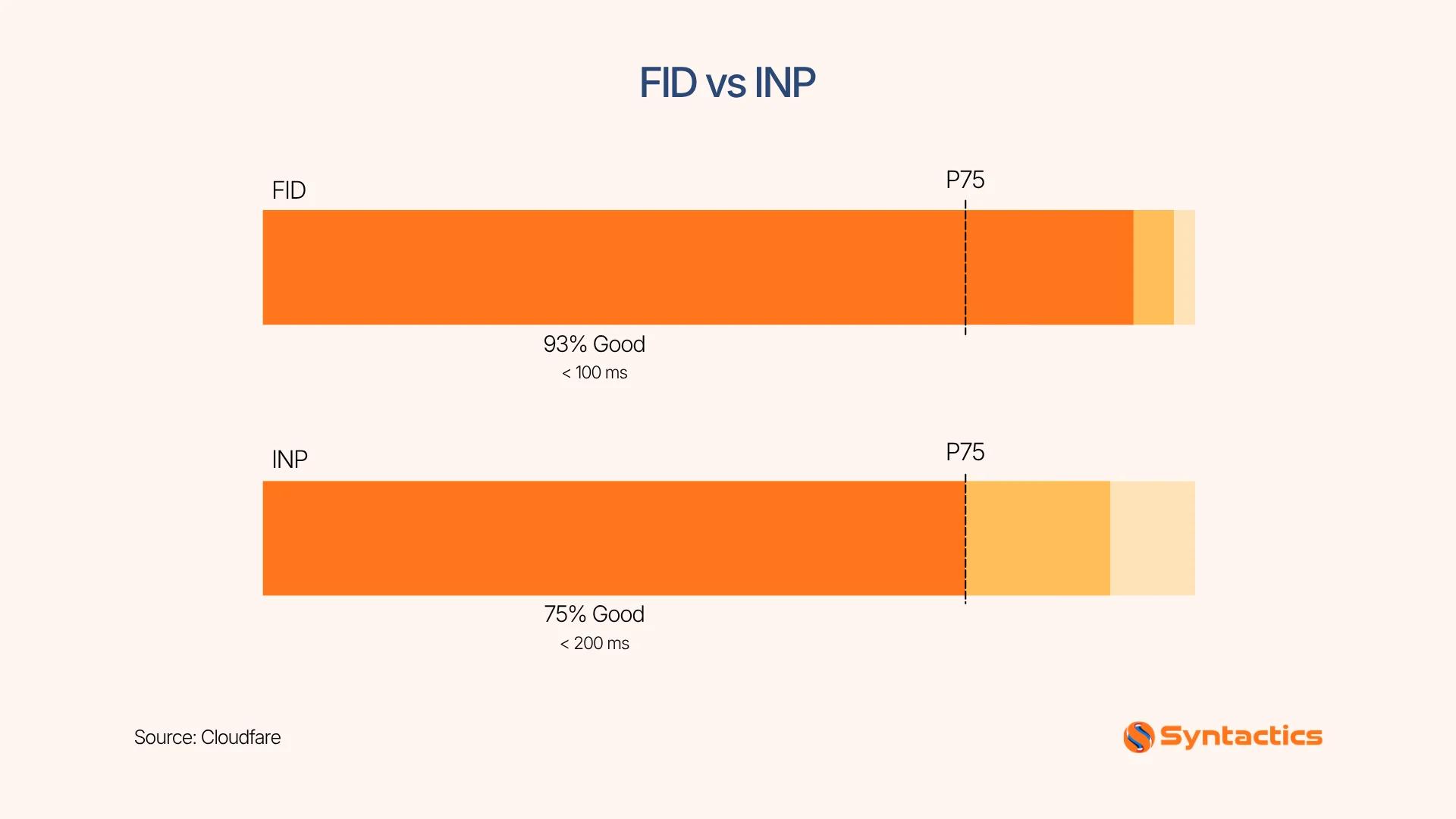
Source: Cloudflare.
When Optimization Is Not Enough
Sometimes the problem sits deeper than page configuration. For instance, a bloated theme, conflicting plugins, inadequate infrastructure, poor template architecture, unstable deployments, or recurring maintenance and security issues can make ongoing optimization inefficient.
In that case, a rebuild or migration makes more sense when your existing stack repeatedly creates the same performance problems. You can then address the architecture instead of repeatedly treating individual symptoms.
The goal is not to achieve a perfect score at any cost. You want a stable WordPress site that loads efficiently, responds reliably, and supports the actions you want visitors to take. When performance issues stem from the site’s structure, WordPress performance optimization may need to happen alongside broader changes to templates, functionality, or the underlying code.

How Syntactics Improves WordPress Performance
Effective WordPress performance optimization starts with identifying what slows your website down and prioritizing changes based on measurable results.
Syntactics, Inc. can assess your hosting, caching, images, plugins, code, and Core Web Vitals to identify performance issues that affect the visitor experience. When bigger changes are needed, our team can also support your WordPress web design and development needs. With 26 years of experience and a global client portfolio, we can help you improve your site’s performance while keeping its functionality, design, and business goals in mind.

FAQs About WordPress Performance Optimization
How to improve website performance in WordPress?
You can improve WordPress website performance by optimizing images, enabling caching, reducing unnecessary plugins and scripts, and improving your hosting setup. In addition, regularly test Core Web Vitals to identify slow-loading pages and other performance issues.
How often should you test WordPress website performance?
Test after major changes such as theme updates, plugin installations, redesigns, migrations, or hosting changes. Regular monitoring can also help you catch gradual performance declines before they affect important user journeys.
How does WordPress website design and development affect performance?
Your site design and development choices can affect page structure, code size, image delivery, scripts, and overall loading behavior. A well-structured site can make it easier to maintain performance as you add content and functionality.

About Ladymieh Naallatan
Related News:

Facebook Marketers and Marketing Advertisers



Signs that Your Business is Ready for Automation
Conversion Rate Optimization: Avoid These Mistakes








Comment 0