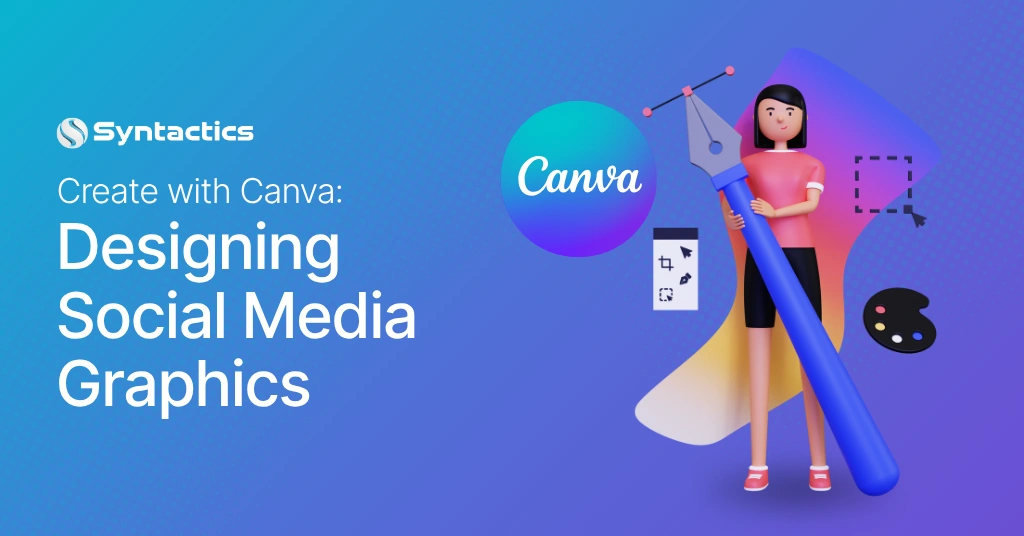
A seasoned graphic design company typically works across Photoshop, Illustrator, and InDesign. But designers of every skill level now have another option: Canva. This online design tool makes it possible to build graphics for websites, emails, and social media without the steep learning curve of traditional design software.
Graphic design services generally cover a wide range of visual content, including:
- Digital advertisements
- Infographics
- Brand logos
- Brochures and other print materials
- Packaging designs
- GIFs
- Social media marketing posts
In the fast-paced social media landscape, captivating visuals are pivotal for business success. They grab attention, convey marketing messages, and foster engagement. Visuals also shape how audiences perceive a business’s branding and design overall.
Whatever your skill level, Canva can help elevate your social media designs without requiring a design degree to get there.
What Is Canva? A Quick Definition
Canva is a browser-based and mobile design platform, launched in 2013, that lets users build graphics with drag-and-drop templates instead of complex editing tools. Built for speed and accessibility, it has become a go-to option for solo marketers, small business owners, and full graphic design teams alike
.

Source: Style Factory.
Canva serves a wide range of users, from complete beginners to professional graphic design companies looking to speed up routine work. With Canva, you get access to thousands of templates and layouts, including a large library built specifically for social media formats.
Why Use Canva to Design Social Media Graphics?
Canva has become popular because it pairs a simple interface with tools that scale from beginner-friendly to genuinely powerful. That combination matters more than ever: Global Social Media Statistics reports that roughly 5.81 billion people used social media in October 2026. Canva lets businesses design graphics and reach that audience without hiring a full design team for every post.
Creating compelling visual content is one of the most effective social media optimization tactics, and Canva makes it achievable even for teams without in-house designers. The platform also includes native sharing features for posting directly to:
- Twitter (X)
- TikTok
- Pinterest, and other platforms

Source: FinancesOnline.
1. You Can Design on Any Budget
Small businesses and newcomers to the industry are always looking for ways to stretch their marketing budget further. Canva’s free version already includes a strong set of features and thousands of free social media layouts, so cost isn’t a barrier to getting started.
Paid subscription plans unlock additional functionality, including:
- Premium templates
- Advanced collaboration tools
- Premium stock images
- AI-powered design tools (available on Canva Pro and Teams)
Canva’s AI features give designers a real speed advantage. Magic Write generates on-brand captions and copy directly inside the editor, while Magic Design produces full layouts from a single prompt or uploaded image. These tools cut down on repetitive tasks so designers can spend more time on creative decisions instead of blank-page problems.
2. Use Professional Layouts or Build Your Own
Canva gives you access to thousands of professionally designed, ready-to-use social media layouts. You can start from these templates or build a design from scratch if you’d rather have full creative control.
Beyond layouts, Canva also provides access to stock photo libraries, so designers can pull in high-quality images, illustrations, and icons without sourcing them elsewhere. A Brand Kit feature lets users store brand assets, such as logos, colors, and fonts, to keep every design consistent across campaigns. This makes it straightforward to produce images for Pinterest ads, Instagram posts, or attention-grabbing cover images for a Facebook business page or Twitter account.
3. Real-Time Collaboration for Teams
Crafting social media graphics often means working with others, sometimes a graphic design company in a different location, which can complicate back-and-forth feedback and revisions. Canva solves this by letting users collaborate on graphics online in real time, whether that means a quick comment or a full co-editing session.
Because Canva is accessible via web browsers and mobile apps, designers can work on social media designs on the go. Its collaboration features make teamwork even easier, allowing multiple users to work on a single project at the same time.

Source: Semrush.
How to Create Social Media Graphics with Canva
#1: Sign Up for Canva

Start by signing up for Canva online. You can sign up with your Google or Facebook account for convenience, or register with your email. Once you’ve verified your account, you can log in to Canva.
You can also download the Canva app from the App Store or Play Store, so you’re not limited to a desktop browser.

2. Search for Layouts
Type a keyword that matches your desired design into the search box. Entering something like “social media graphics,” for instance, brings up thousands of templates to choose from.

3. Choose a Template
Pick a social media graphic template that matches your business, industry, and overall theme. To narrow your options, add more specific keywords and apply filters. You can filter by category, such as Instagram Post, Poster, Logo, Presentation, or Instagram Story, and choose between free or paid designs. Filtering by color is also possible if you’re matching an existing brand palette.

Once you’ve found a template you like, click it, then select “Customize this template.” This redirects you to the Canva editor, where the real design work begins.

4. Customize the Design
After choosing a layout or template, you can start working with Canva’s design features. Under the Elements tab on the left side of the screen, Canva offers a wide range of additions for your graphic, including:
- Lines and shapes
- Icons
- Graphics
- Photos
- Videos
- Audio
- Charts
- Frames
- Grids, and more
Designers can apply filters directly to photos in Canva. Clicking a photo brings up options such as Effects, Filter, Adjust, Crop, and Flip. Images can also be animated with the Animate button. Other design elements follow the same pattern: click on any element, and a toolbar appears at the top of the design space for further customization.

5. Use Canva’s AI-Powered Features
Canva includes a growing set of AI tools that speed up the design process and expand what’s possible inside the editor. Here are the key ones worth knowing:
- Magic Write. Generates captions, headlines, and body copy based on a short prompt. Useful for social media posts where copy and visuals need to work together.
- Text to Image. Creates custom graphics from a text description, giving designers original visuals without relying entirely on stock photo libraries.
- Magic Edit and Background Remover. Lets you swap out elements in a photo or strip the background in one click, cutting down on manual photo editing time significantly.
- Magic Resize. Adapts a finished design to multiple platform dimensions automatically. One design becomes an Instagram post, a Facebook cover, and a Pinterest graphic without rebuilding it from scratch.
- Magic Design. Generates a complete design layout from a prompt or an uploaded image, particularly useful when starting from a blank canvas.
Most AI features are available on Canva Pro and Teams plans, though some, like Background Remover, are exclusive to paid tiers. If your team produces a high volume of social media content, these tools can measurably reduce production time.

#6: Upload Media
If you already have an image, a video, or an audio clip for your social media graphic, then Canva allows you to upload it. You need to click on the Upload tab on the left side of the screen and upload your media, record it yourself, or drag and drop it directly to the canvas.

7. Download or Share Your Design
Once your social media graphic is finished, save it by clicking the Share button in the upper right corner of the screen. You can download your design as a JPG, PNG, GIF, or other format. Alternatively, share the design with others: Canva lets you send a link so others can edit it, use it as a template, or simply view it. You can also post directly to your social media accounts by clicking “Share on social.”

Quick Summary: Designing Social Media Graphics with Canva
- Sign up for Canva via Google, Facebook, or email.
- Search for a layout using keywords related to your desired design.
- Choose and customize a template with Canva’s Elements, filters, and Brand Kit.
- Use AI tools like Magic Write, Magic Resize, and Background Remover to speed up production.
- Upload your own media if needed, then download or share the finished graphic directly to social platforms.
Canva vs. Professional Design Tools
| Feature | Canva | Photoshop / Illustrator |
| Learning curve | Low; template-based interface | Steep; requires design training |
| Best for | Social media graphics, quick marketing assets | Complex image editing, vector artwork, print production |
| AI tools | Magic Write, Magic Design, Magic Resize, Background Remover | Limited AI features (varies by version) |
| Collaboration | Real-time, built-in | Requires third-party tools or cloud plans |
| Pricing | Free plan available; Pro and Teams tiers | Subscription-based, no permanent free tier |
Create Engaging Social Media Graphic Designs with Canva!
All in all, Canva is a vital tool for many graphic design companies and designers. With its user-friendly interface, vast template library, and collaborative features, Canva empowers its users to create compelling visual content.
Canva significantly streamlines the process of designing various visual media, such as social media graphics. This useful tool lets you create visual content that adds greater value to your social media marketing strategies, boosting your online presence.
Social media graphics are an instrumental part of your digital marketing strategies. Also, professional graphic design services are experts at creating eye-catching content for your social media channels!

This article was updated on October 28, 2026.
Frequently Asked Questions
Is Canva free to use for social media graphics?
Canva offers a free plan that includes thousands of templates, basic design elements, and limited storage. It covers the essentials for most social media graphic needs. The Pro and Teams plans unlock premium templates, brand kits, advanced collaboration tools, and AI-powered features like Magic Write and Background Remover.
What social media platforms does Canva support?
Canva has templates for Facebook, Instagram, Twitter, TikTok, Pinterest, LinkedIn, and YouTube, among others. The Magic Resize feature lets you convert one design into multiple platform-specific formats in a single step, which saves considerable time for teams managing multiple channels.
How does Canva compare to professional tools like Photoshop or Illustrator?
Canva prioritizes speed and accessibility. It handles template-based design and social media content production well, and its AI tools extend that efficiency further. Photoshop and Illustrator offer deeper control over complex image editing, vector artwork, and print production.
For most social media graphic workflows, Canva covers the requirements. For highly technical or print-heavy projects, professional tools remain the stronger option.