

WordPress 7.1 “Mary Lou”: What Business Owners Need to Know
WordPress 7.1, code-named “Mary Lou,” launched on August 19, 2026. The release adds native responsive styling for compatible block themes, richer Notes for team feedback, browser-based image processing, new Tabs and Playlist blocks, and several admin improvements.
For business owners, these changes mean your team can handle more layout updates, work together more easily on content, and upload large or modern image files with fewer server errors. If your site uses older plugins or custom features, test the update on a staging site before going live.
Key Takeaways
- WordPress 7.1 “Mary Lou” launched on August 19, 2026, with new tools for site management and content creation. [WordPress.org]
- Compatible block themes now support responsive styling for mobile and tablet layouts with less custom CSS.
- Notes support richer feedback features, including text formatting, @mentions, and more precise comments.
- Browser-based image processing can reduce server load and improve large-image upload reliability.
- Sites with older plugins, custom themes, or bespoke features should test the update on staging before upgrading.
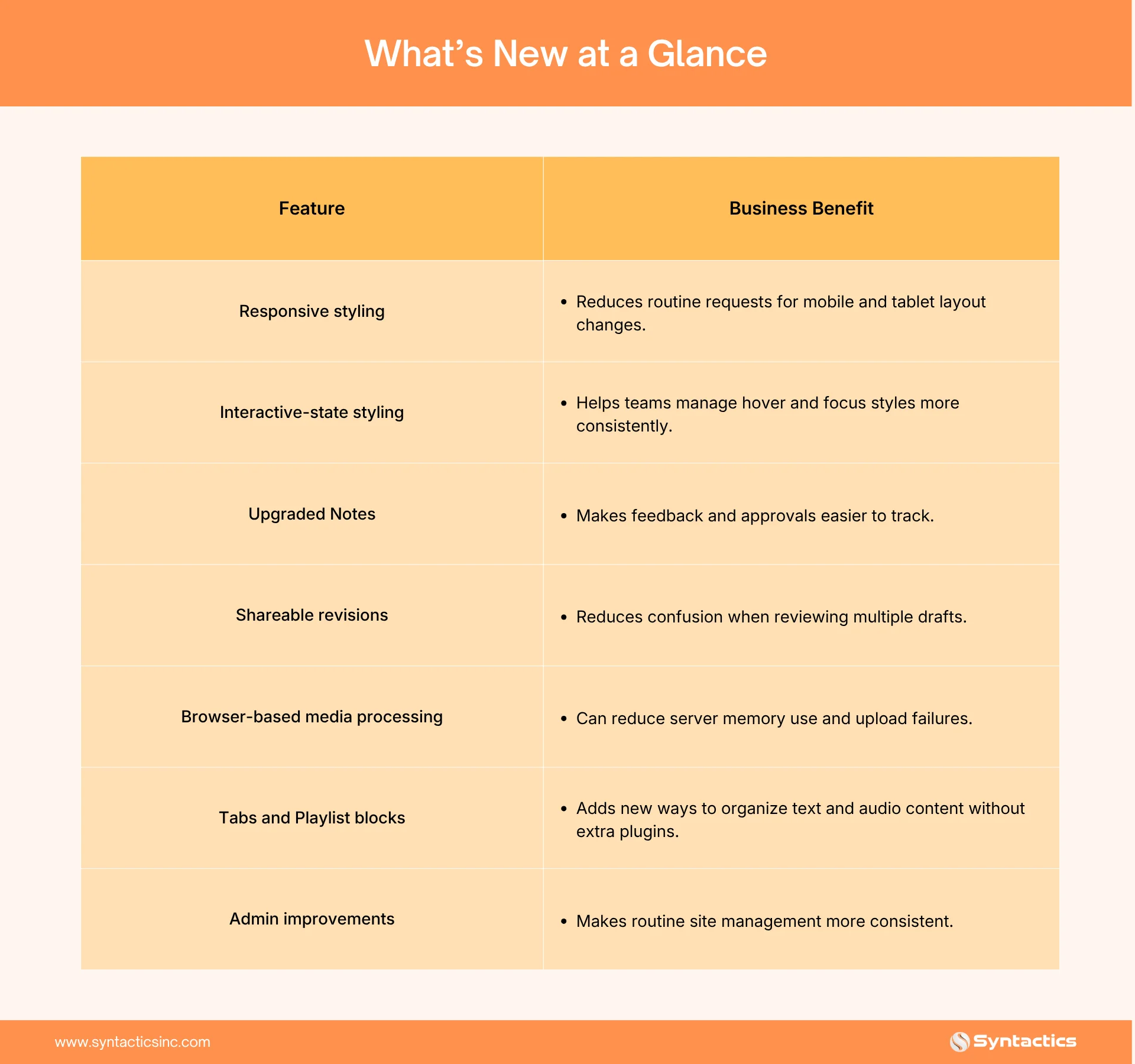
What’s New at a Glance
More Responsive Websites
Most visitors browse business websites on mobile devices. Making sure each page works well across different screen sizes has traditionally required custom CSS, theme settings, or developer support.
WordPress 7.1 adds more responsive styling controls to the core system. With compatible block themes, editors can adjust settings like spacing, fonts, and sizes for mobile and tablet layouts without writing custom CSS.
This feature is not available on every WordPress site. It depends on your theme, block support, and site settings. For compatible block themes, it can reduce the need for extra mobile rules and small CSS changes.

Interactive Button Styles
WordPress 7.1 also gives you more styling options for interactive states like hover, focus, and active. These new controls first apply to blocks like Button and Navigation Link.
This means your team can change how a button looks right in the editor, instead of asking a developer to write new CSS for small changes.
Hover styling should not replace keyboard focus styling. A visible focus state remains important for visitors navigating with a keyboard or assistive technology.
Improved Feedback and Approvals
If your website has several contributors, like marketers, agency partners, editors, or managers, WordPress 7.1 offers a more organized way to review content.
Tag Teammates in Notes
Notes now support rich text and @mentions. Team members can tag each other in comments and, if notifications are set up, send an email alert.
This helps when you need someone to review or revise something. Instead of asking colleagues to keep reopening a page, an editor can show who owns the next step.
Comment on Specific Content
Notes let you give feedback on specific parts of content, not just the whole page or section. This is helpful when reviewing a headline, product description, call to action, or a sentence that needs editing.
It also lets you use bold text and links, which helps reviewers give clearer instructions.
Share a Specific Revision
Shareable revision links make it easier to direct a client or manager to a particular saved version of a page. This helps when multiple drafts exist, and reviewers need to assess one exact iteration.
Test this feature with your site’s permissions and review process. Make sure external reviewers can access the intended content without exposing drafts or revisions they should not see.
Faster, More Reliable Photo Uploads
Large images can cause upload failures, memory errors, and slow processing, especially on cheaper hosting plans.
For supported uploads, the browser can handle image compression, resizing, conversion, and making thumbnails before sending files to the server. This means the server and PHP have less work to do.
The result can be:
- Lower server memory use.
- Fewer PHP-related upload errors.
- Less strain on shared hosting.
- More reliable processing of large files.
- Potentially smaller image files.
The exact result varies according to the original image, format, browser, and site configuration. Third-party testing has reported smaller files in some workflows, but you shouldn’t treat a specific average reduction as guaranteed.
WordPress 7.1 also improves workflows involving HEIC images commonly produced by iPhones, AVIF images, and HDR-related image data.
Browser support and image processing can differ, so test large uploads and new image formats in the browsers your team uses.
New Content Blocks
WordPress 7.1 gives you new ways to show organized content without needing extra plugins.
Tabs Block
The Tabs block lets you organize related information into clickable panels, instead of showing everything in one long section. You can use it for things like:
- Frequently asked questions.
- Product specifications.
- Service comparisons.
- Pricing details.
- Step-by-step instructions.
Use tabs carefully. Make sure important information is easy to find, and keep the design usable on mobile devices and for keyboard and screen reader users.
Playlist Block
The Playlist block presents multiple audio files with a built-in player. It may be useful for podcasts, training audio, interviews, sermons, and audio lessons.
The block removes the need for a separate plugin for a basic playlist. Advanced audio analytics, gated content, or podcast distribution may still require additional tools.
Admin and Developer Changes
WordPress 7.1 also improves the Site Editor and admin experience, with updates to the Design System, DataViews, DataForms, tooltips, and accessibility.
For site owners, the main benefit is a smoother management experience. These changes mostly affect admins and editors, and do not automatically change how your website looks to visitors.
Developers should also test custom editor integrations, since the post editor now always uses an iframe. Plugins that directly change the editor canvas or expect it to share the same document as the rest of WordPress may need updates. Following disciplined coding standards helps with this work.
The release also makes the SVG Icon API public, allowing plugins and themes to register custom icon collections and icons through functions such as wp_register_icon_collection() and wp_register_icon().
What to Check Before You Update
If your website uses only a few actively maintained plugins and a standard theme, updating should be straightforward. More complex sites should use a staging environment first.
Before updating:
- Create a complete backup of the database and website files.
- Check whether your theme and plugins support WordPress 7.1.
- Test forms, checkout flows, logins, search, menus, and interactive blocks.
- Test large image uploads and HEIC or AVIF workflows.
- Review custom editor plugins because of the always-iframed post editor.
- Check responsive layouts on real phones and tablets.
- Clear caches and run a visual and functional review after updating.
Don’t delay important security updates while waiting to test new features. WordPress 7.0.4 already included a security fix, and WordPress recommended updating sites right away. This fix is also included in WordPress 7.1.
Final Thoughts
WordPress 7.1 gives business teams more control and reduces routine work for developers. However, plugin compatibility checks and staging tests still need expert attention, especially if your site handles bookings, payments, or a large product catalog.
This is where a trusted partner for WordPress design and development in the Philippines makes the difference. Syntactics, Inc. has an expert team that reviews your plugins, tests updates on staging, and rolls them out without downtime. Your site stays live, your visitors see no disruptions, and you stay focused on running the business.

Frequently Asked Questions
Is WordPress 7.1 a free update?
Yes. WordPress 7.1 is free for anyone running a self-hosted WordPress site. You install it the same way you install any other core update, from your site’s dashboard.
Will WordPress 7.1 break my current website?
Most sites update without any problems. The main risk comes from older plugins that have not been updated recently. Testing on a staging site first, or having a developer check compatibility, removes most of that risk.
Do I need a developer to use the new mobile styling feature?
No. The new responsive styling tools live directly in the page editor. Anyone who already edits your site’s pages can use them without writing code.
How long does a WordPress update usually take?
A core update itself typically takes a few minutes. Budget more time for a full backup beforehand and a quick site check afterward, especially if you run several plugins.
Should I update right away or wait?
If your site is compatible, update promptly after creating a backup. Sites with many plugins, custom code, or mission-critical functionality should test WordPress 7.1 on staging first. Do not delay applicable security updates while waiting to test the broader release.

About Ladymieh Naallatan
Related News:

How to Design a Real Estate Website

Digital Marketing and the Real Estate Industry
How to Evaluate Your Google Ads Performance





Comment 0